
NotebookLM is one of the most useful free study tools to come out of the AI boom, and one of the most misunderstood. It is not a chatbot that knows everything. It is a notebook that reads your material, then helps you understand it, question it and review it.
One thing first: the name changed. On July 16, 2026, Google renamed NotebookLM to Gemini Notebook. It is the same standalone tool with the same notebooks, and old notebooklm.google.com links redirect automatically (Google). Most people still search for NotebookLM, so we use both names in this guide.
Quick answer: make one notebook per subject, upload your own notes and readings, ask questions, click the citations to check each answer, then use the Studio panel for flashcards, quizzes and audio reviews.
- NotebookLM was renamed Gemini Notebook on July 16, 2026. Same tool, same notebooks.
- It answers from your sources, not from the whole internet.
- The routine below works on the free plan.
- Always click the citations for anything that matters.
What NotebookLM actually is
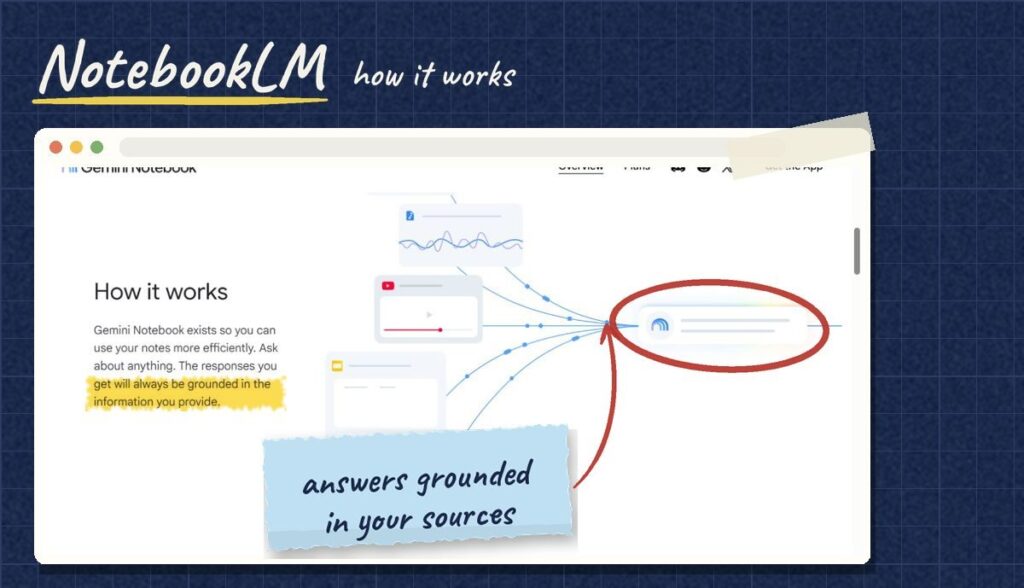
Most AI chatbots answer from what they learned during training, plus the web. NotebookLM works differently: it answers from the sources you give it, and each answer comes with numbered citations that point to the exact passage it used. If the answer is not in your sources, it is designed not to go searching the internet for one.
That makes it a strong fit for studying. You are not asking “what is photosynthesis?” to the whole internet. You are asking “what did my teacher’s slides say about photosynthesis?” and getting an answer you can check in seconds.
Is NotebookLM free?
Yes. The standard plan is free with a Google account, with no trial period. Around mid-2026, the free plan was widely reported to include 100 notebooks, 50 sources per notebook and around 50 chat questions a day, plus a small daily number of Audio Overviews (source). In September 2026, Google started moving to a compute-based usage quota, so daily limits now depend on how heavy your requests are. Check Google’s limits page if you hit a wall.
Paid tiers come with Google AI subscriptions and mainly raise the limits. For a student reviewing a few courses, the free plan is usually enough.
A 5-step study routine with NotebookLM
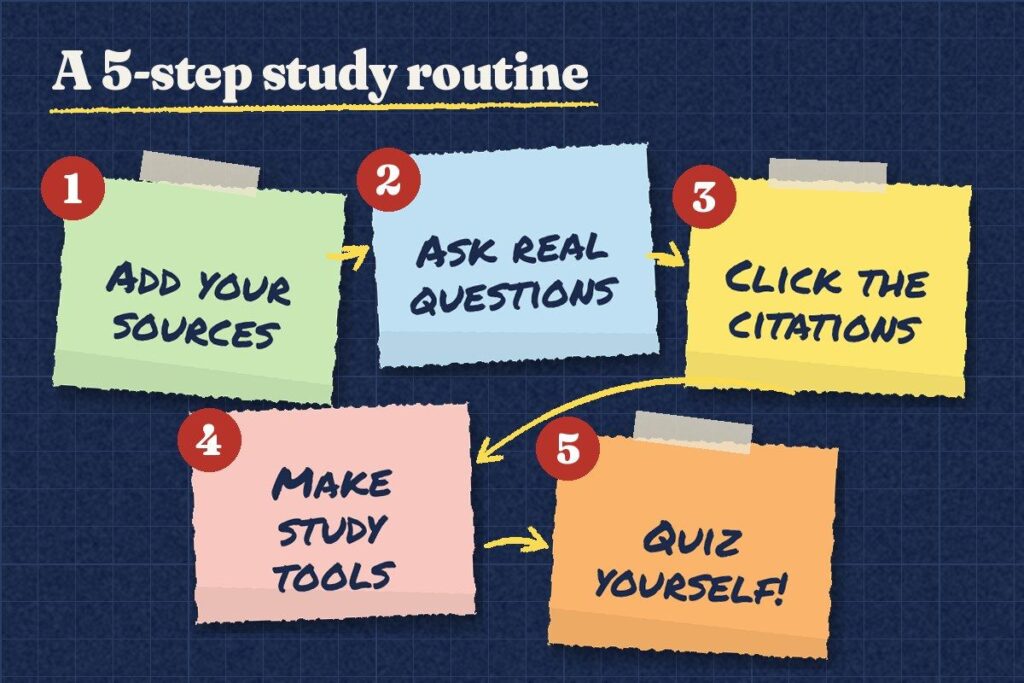
Step 1: Create one notebook per subject or unit
Open NotebookLM, click to create a new notebook and give it a clear name, like “Biology: Unit 3 Cells”. Keeping one topic per notebook gives you sharper answers than dumping a whole semester into one place.
Step 2: Add your sources
Add the material your test will actually cover: lecture notes, PDF readings, slides, Google Docs, web articles, pasted text or video transcripts. The list of supported source types keeps growing. A few tips:
- Upload your own notes, not just the textbook. The AI can then connect what you wrote with what the book says.
- Name your files clearly so the citations make sense later.
- Do not upload anything private or anything your school does not allow you to share.
Step 3: Ask questions in the chat
Treat the chat like a patient study partner who has read everything. Good questions to start with:
5 study prompts that work in NotebookLM
Step 4: Click the citations
This is the step most people skip, and the one that makes NotebookLM trustworthy. Each answer has small numbers. Click them and read the passage it came from. If the passage does not really say what the answer claims, you have caught a mistake before it ends up on your exam. NotebookLM reduces made-up answers, but it does not eliminate them. Our guide to AI hallucinations shows what to look for.
Step 5: Turn your sources into study tools
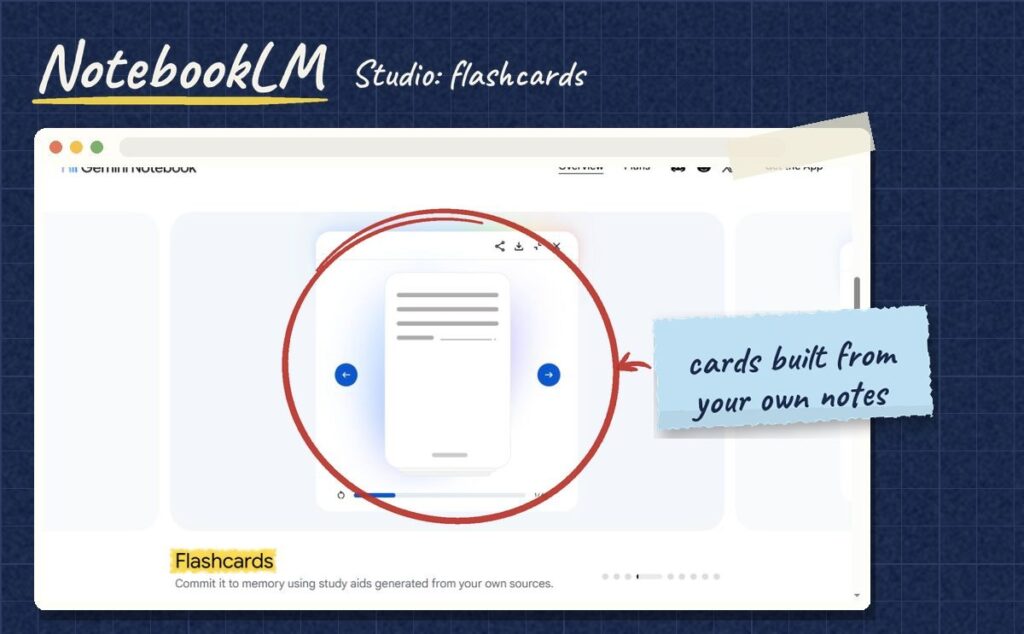
Open the Studio panel. From your sources, it can generate study guides and reports, flashcards, quizzes, mind maps, slide decks, infographics, and Audio and Video Overviews.
- Study guide: a summary with key terms and review questions. Start here.
- Flashcards and quizzes: the fastest way to test yourself. Answer before you flip.
- Audio Overview: a podcast-style conversation about your sources, useful for review on a walk or a bus ride.
- Mind map: shows how topics connect, which helps with essay questions.
How to get the most out of it
A few habits make a big difference:
- Quiz yourself before you read the summary. Trying to remember first, then checking, is what builds memory.
- Come back on different days. One long session is weaker than three short ones spread over a week. For long-term review, you can move your best cards into a spaced repetition app. See our list of Quizlet alternatives for free options.
- Ask it to find your gaps. “Based on my notes, what did I not cover that the reading covers?” is a question most students never think to ask.
- Write your own answers. Use the AI to check your understanding, not to produce your homework.
A simple weekly rhythm: on Monday, add the new week’s notes and slides. On Wednesday, spend 15 minutes on the flashcards or the quiz. On Friday, ask the chat to find the gaps between your notes and the reading, then fix them. Three short sessions like this beat one long night before the test, and they keep each notebook tidy enough to reuse at exam time.
NotebookLM for teachers
Teachers can use the same tool to prepare material: upload a unit’s readings and ask for discussion questions, a vocabulary list or a quiz based only on those texts. Because it works from your sources, the output stays closer to what you actually taught. For more ways to build classroom material quickly, see our guide to AI worksheet generators.
Limits and common mistakes
- It is only as good as your sources. Incomplete notes give incomplete answers.
- It can still misread a source. Always check the citation for anything important.
- Account rules vary. School-managed Google accounts and personal accounts can have different access and age requirements. Check with your school if a feature is missing.
- Follow your class rules. Using AI to understand material is usually fine. Submitting AI-written work as your own usually is not. When in doubt, ask your teacher.
Frequently asked questions
Is NotebookLM the same as Gemini Notebook?
Yes. Google renamed NotebookLM to Gemini Notebook on July 16, 2026. It remains a standalone tool, and existing notebooks and links keep working.
Can NotebookLM make flashcards?
Yes. The Studio panel can generate flashcards and quizzes from the sources in your notebook.
Is NotebookLM better than ChatGPT for studying?
For studying your own course material, it has a clear advantage: it answers from your sources and shows citations you can check. General chatbots are better for open questions that go beyond your notes.
Does NotebookLM search the internet?
The chat is designed to answer from the sources in your notebook. Some features, like Deep Research, can help you find new sources to add.
The bottom line
NotebookLM (Gemini Notebook) is at its best when you treat it as a study partner that has read your material, not as an answer machine. Add your sources, ask real questions, check the citations, then test yourself with the Studio tools. That routine is free, and it works.
More plain-English guides are waiting in our AI Guides section.