How to Use Mindgrasp AI: Step-by-Step Tutorial (Real Test, 2026)
We tested Mindgrasp AI on one Wikipedia article on November 9, 2026: how to add your material, then use the AI summary, notes, 80 flashcards, quizzes and the AI Tutor, plus a 20-minute practice run.
Learning Guides · AI Guides · Mindgrasp AI tutorial
To use Mindgrasp AI, start a New Study Session, add a file, a link, text or a recording, and wait about 30 seconds. You then get five study tools from the same material: an AI summary, AI notes, flashcards, quizzes and an AI Tutor you can chat with.
- We tested it on November 9, 2026 with one Wikipedia article on photosynthesis.
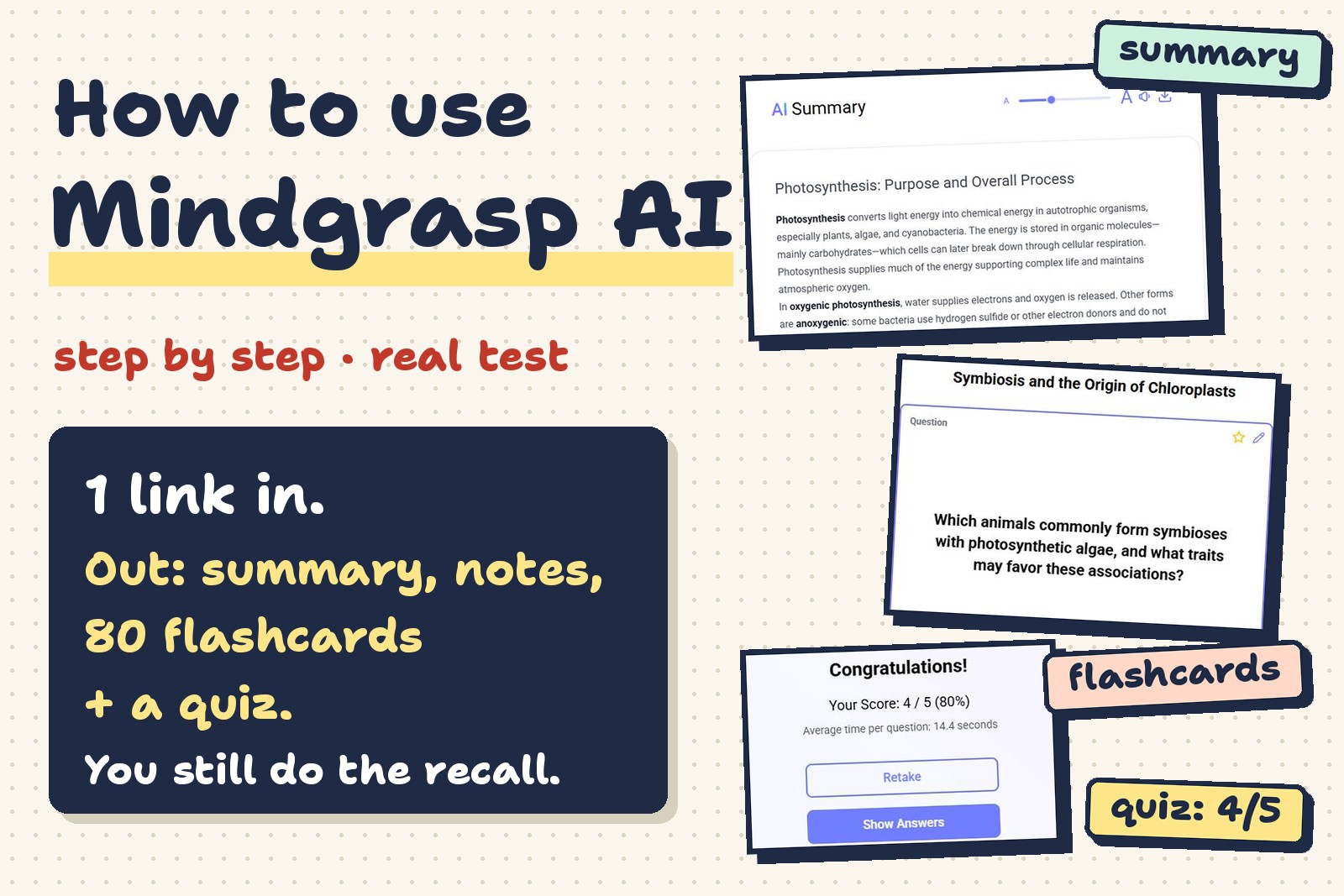
- It made a 7-part summary, 14 note cards, 80 flashcards and quizzes of 5 to 35 questions.
- Our best tip: answer from memory first, then let the tool check you. That is where the learning happens.
About the links: we used every feature on this page ourselves, on November 9, 2026. Links marked “partner link” are affiliate links: if you subscribe through them, Worksheet365 may earn a commission at no extra cost to you. Code 9GAXXWH6 gives you 20% off your first payment. Our disclosure.
What Mindgrasp AI does
Mindgrasp AI is a study tool that reads your course material and turns it into things you can study with. You give it a lecture, a PDF, slides, a video or a web page. It gives you back a summary, notes, flashcards and quizzes, plus a tutor that answers questions about that material.
To see how it works for real, we gave it one long Wikipedia article (Photosynthesis) and used every tab, one by one. Here is the whole flow:
Step 1: add what you study
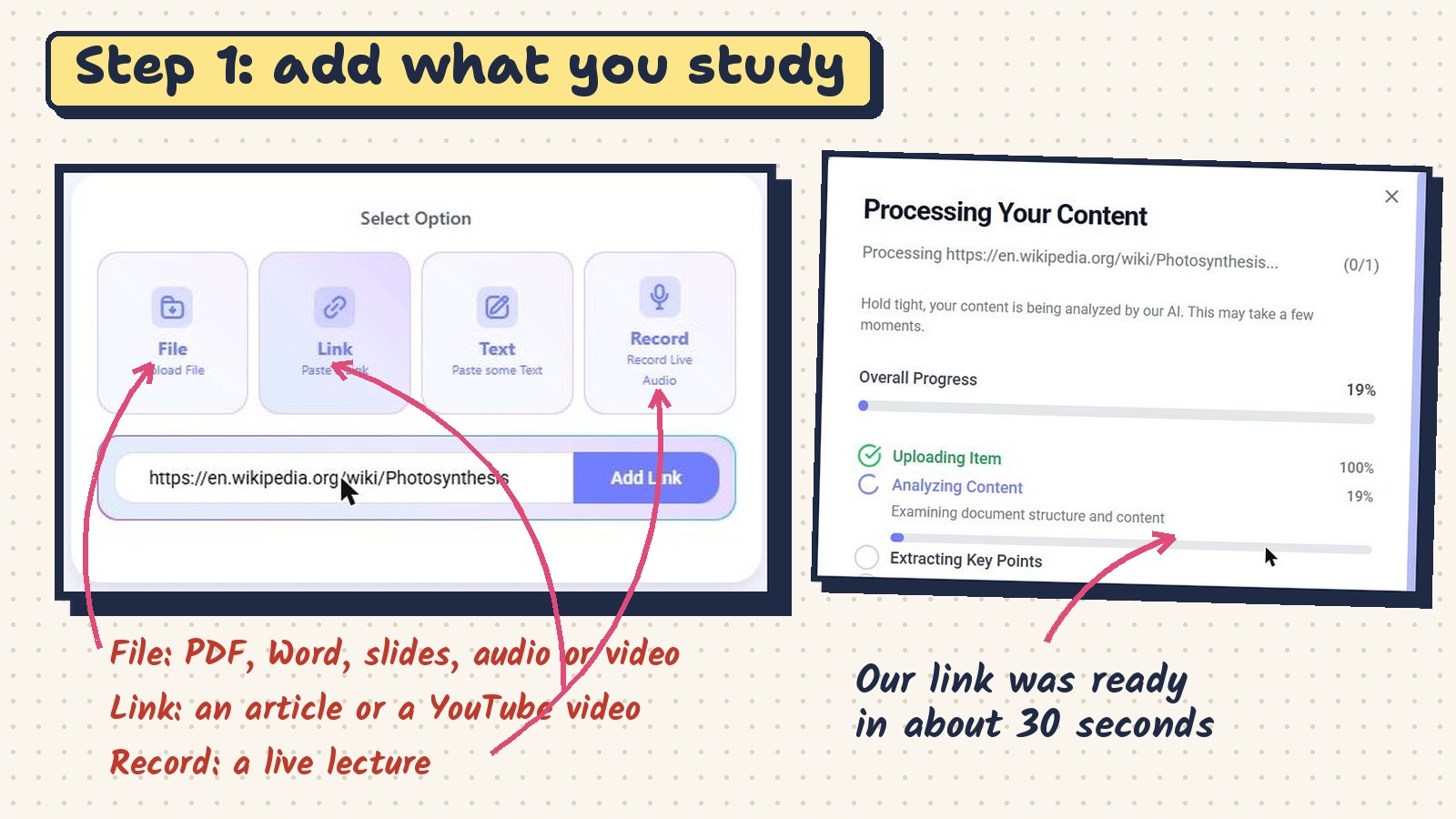
Click the + button or New Study Session. You get four ways in:
- File: upload a PDF, a Word file, slides, or an audio or video file.
- Link: paste a web article, a YouTube video or a Vimeo link.
- Text: paste your own notes or a chapter you copied.
- Record: record a live lecture and study from it after class.
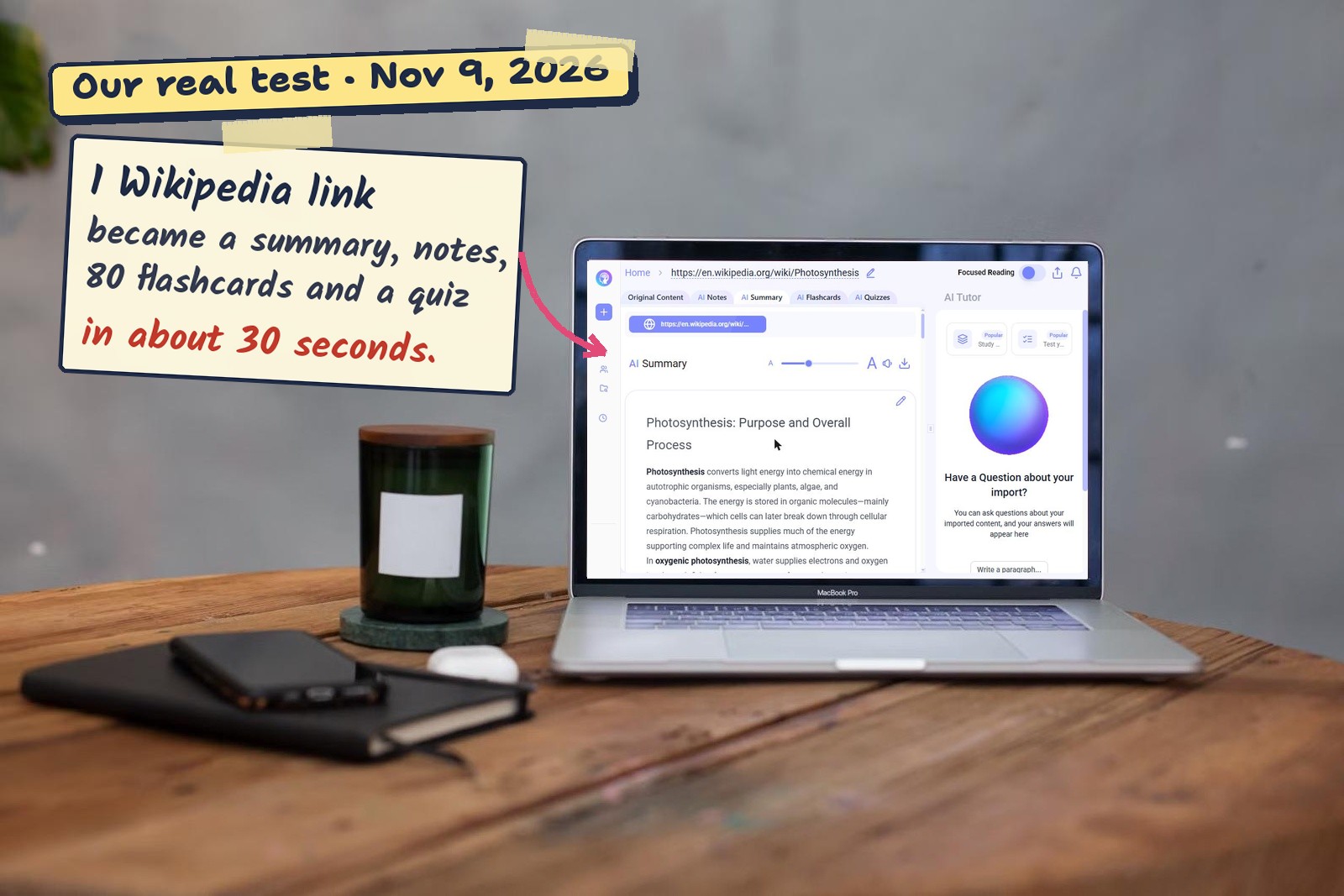
We pasted the link to the Wikipedia article and clicked Add Link. A progress screen showed each stage (uploading, analyzing, extracting key points, mapping concepts). Our session was ready in about 30 seconds. Long videos or big PDFs will take longer.
Step 2: read the AI summary
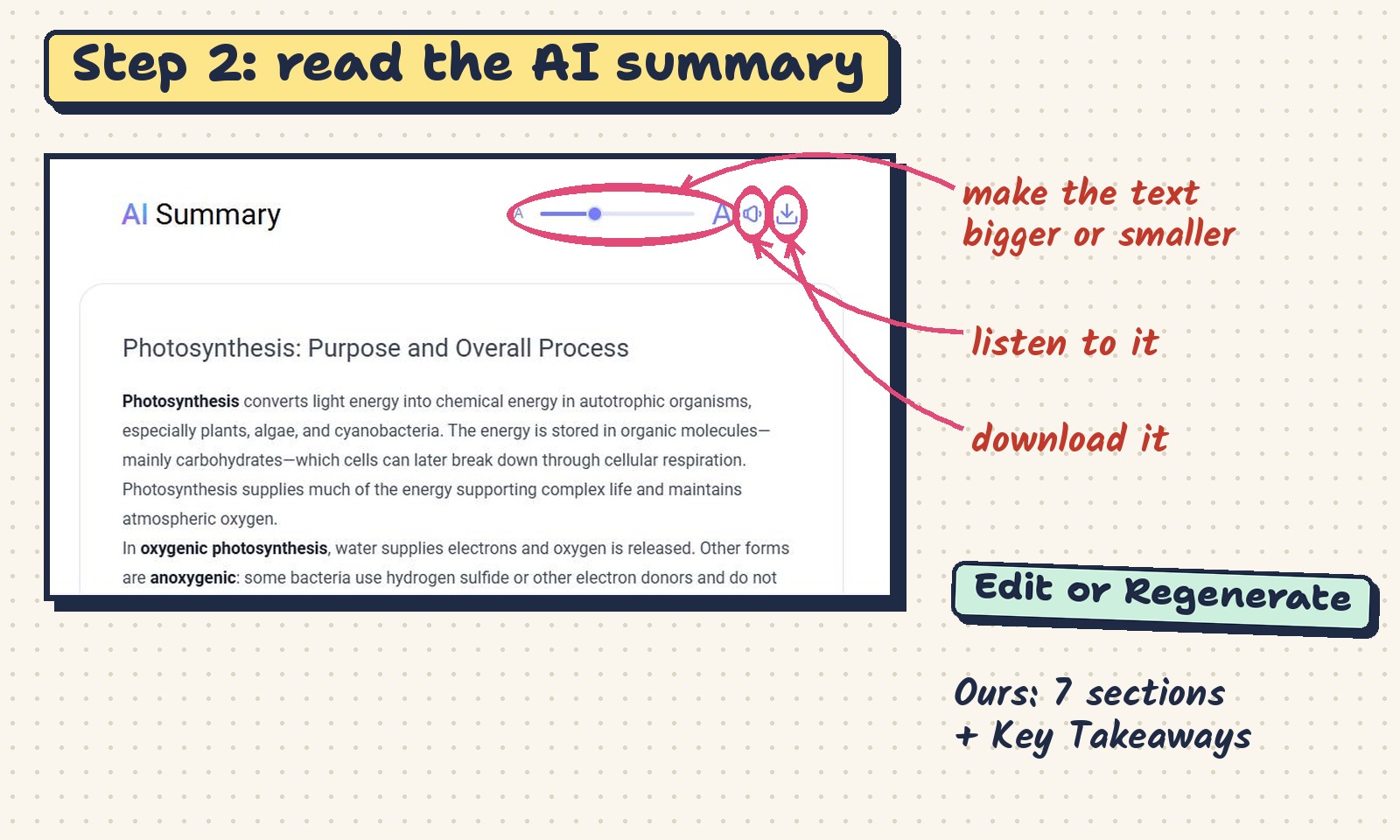
Open the AI Summary tab and click Generate. Our summary had 7 parts with clear headings, from “Purpose and Overall Process” to “Environmental Controls”, and a short Key Takeaways list at the end.
Above the summary you can make the text bigger or smaller, have it read aloud, or download it. A pencil lets you edit it, and Regenerate writes a new version if the first one does not suit you.
Step 3: use the AI notes
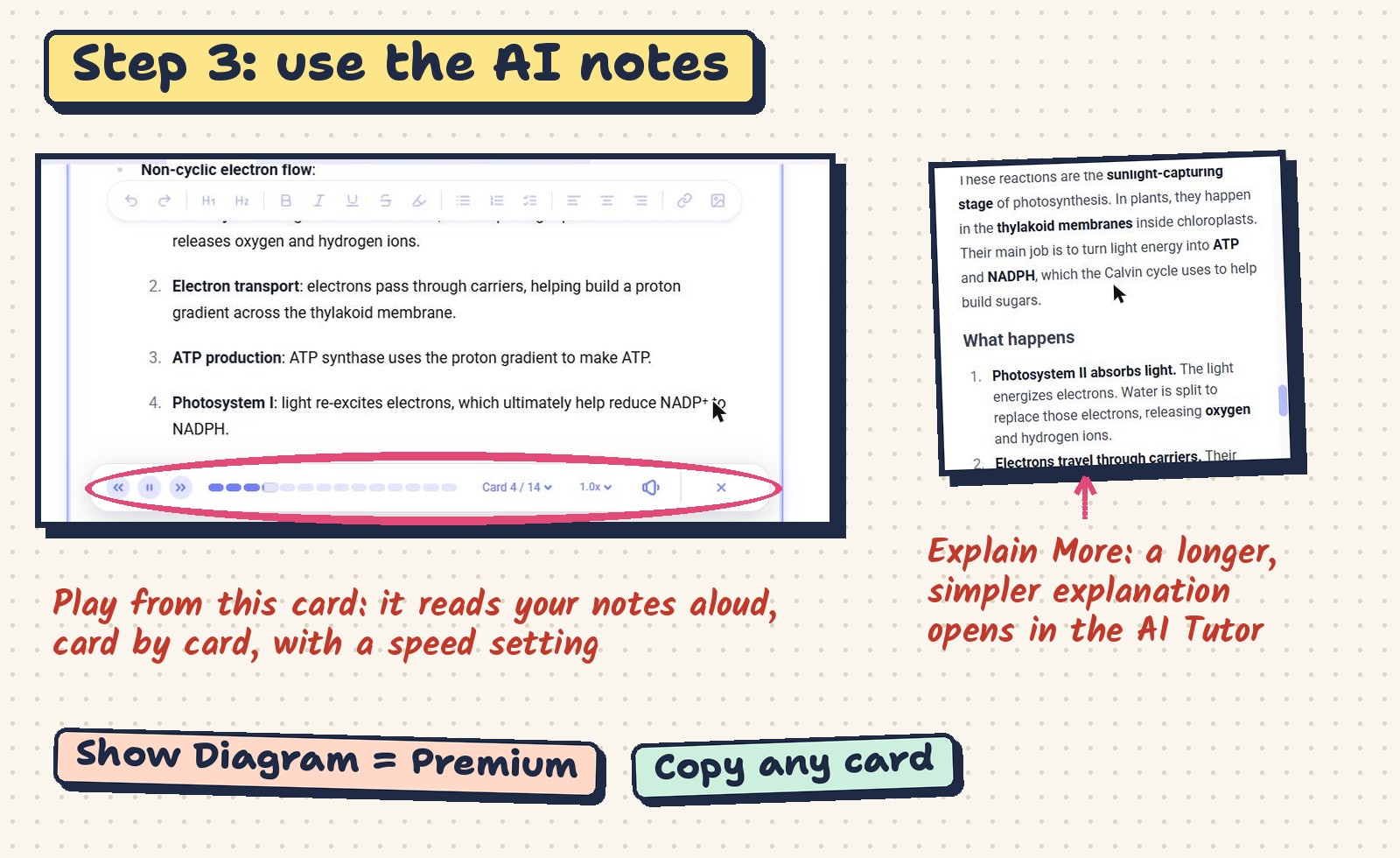
The AI Notes tab splits the material into topic cards with short bullet points (we got 14 cards for our article). Under each card you find:
- Play from this card: reads your notes aloud, card by card, with a player and a speed setting. Handy on the bus.
- Copy: copies the card so you can paste it into your own notes.
- Explain More: sends the topic to the AI Tutor, which writes a longer, simpler explanation. Ours explained the light reactions step by step and ended with an “In brief” line.
- Show Diagram: draws a diagram of the topic. This one asked us to upgrade: it is a Premium feature.
The notes are also editable, with a small text toolbar (bold, lists, links and so on), so you can add your teacher’s examples right into them.
Step 4: study the flashcards
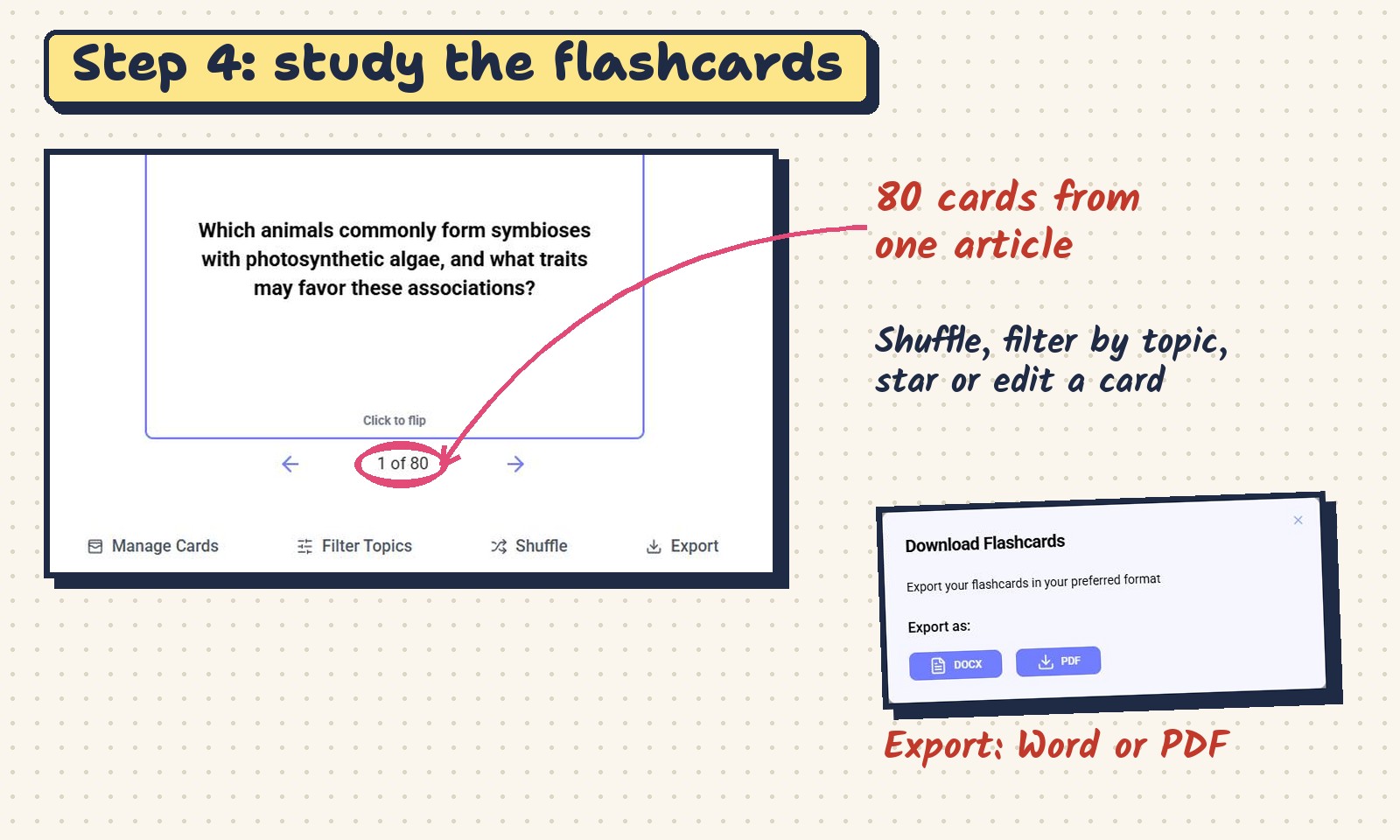
The AI Flashcards tab made 80 cards from our one article. Click a card to flip it. You can star a card to come back to it, edit it with the pencil, and use the buttons below:
- Manage Cards to clean up the deck.
- Filter Topics to study one part of the chapter at a time.
- Shuffle so you do not learn the order instead of the content.
- Export as a Word file (DOCX) or a PDF, to print or to use in another app.
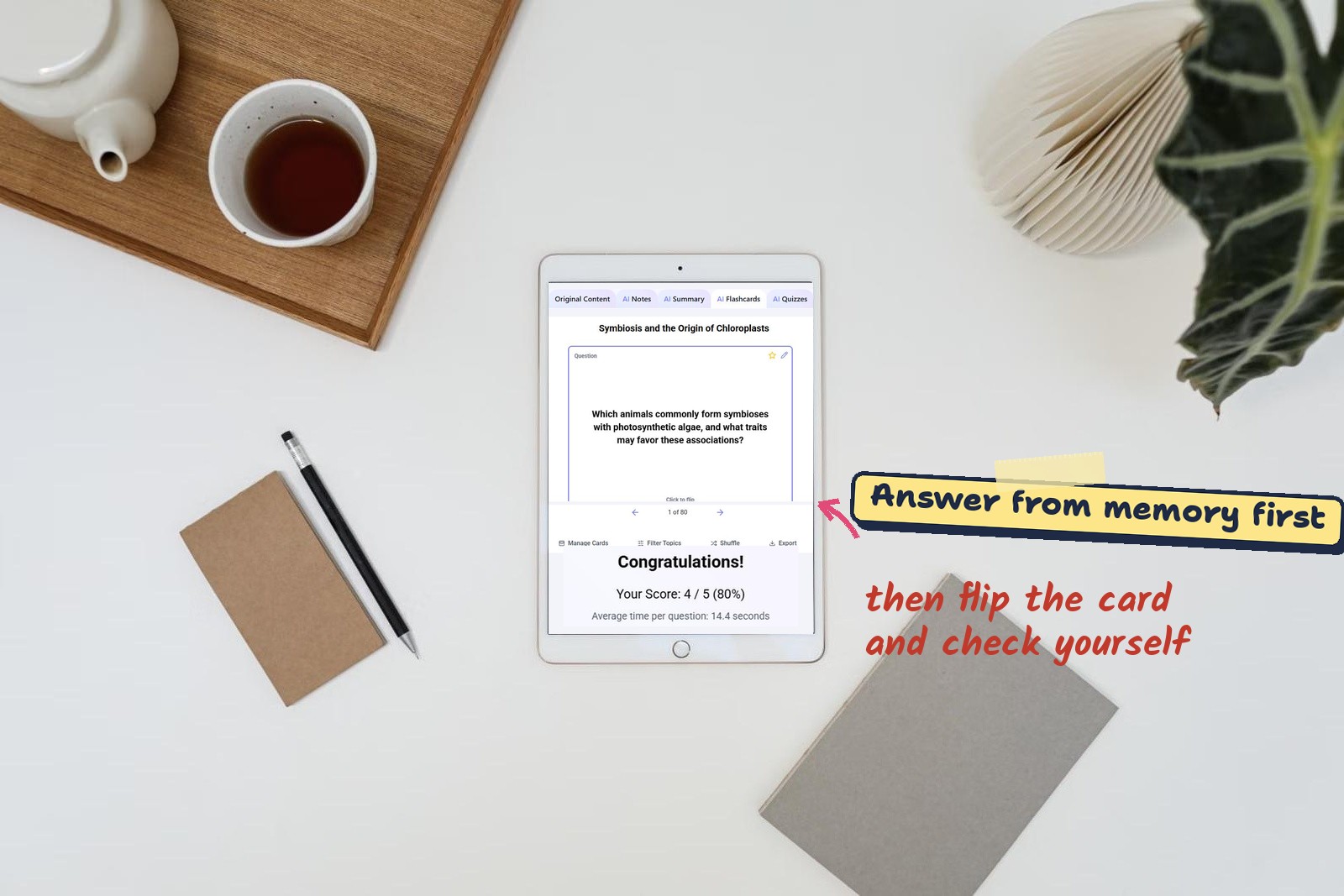
Prefer paper? Export the deck as a PDF, or write your own cards with our free flashcard template.
Step 5: make and take a quiz
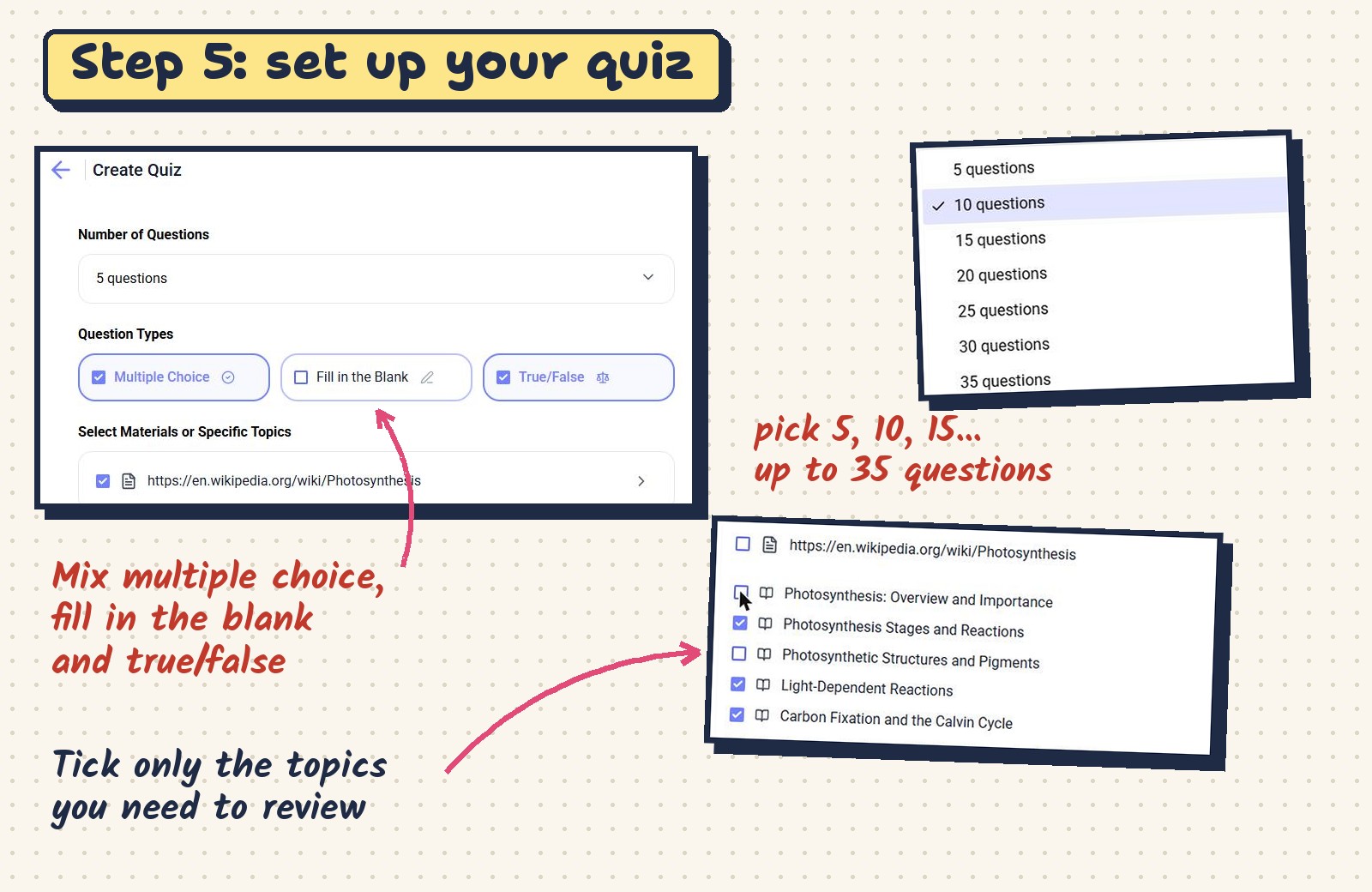
This is the most useful tab for exam prep. Open AI Quizzes, click Create Quiz and set three things:
- Number of questions. The list goes 5, 10, 15 and up to 35. Start with 10.
- Question types. Tick any mix of Multiple Choice, Fill in the Blank and True/False. Fill in the blank is the hardest, because you cannot guess: use it the day before the exam.
- Topics. Open your source to see its topic list (ours had 14) and untick what you already know.
Then click Generate. Our first quiz (10 questions) took about 10 seconds. Each answer is checked right away: a wrong choice turns red and the right one turns green.
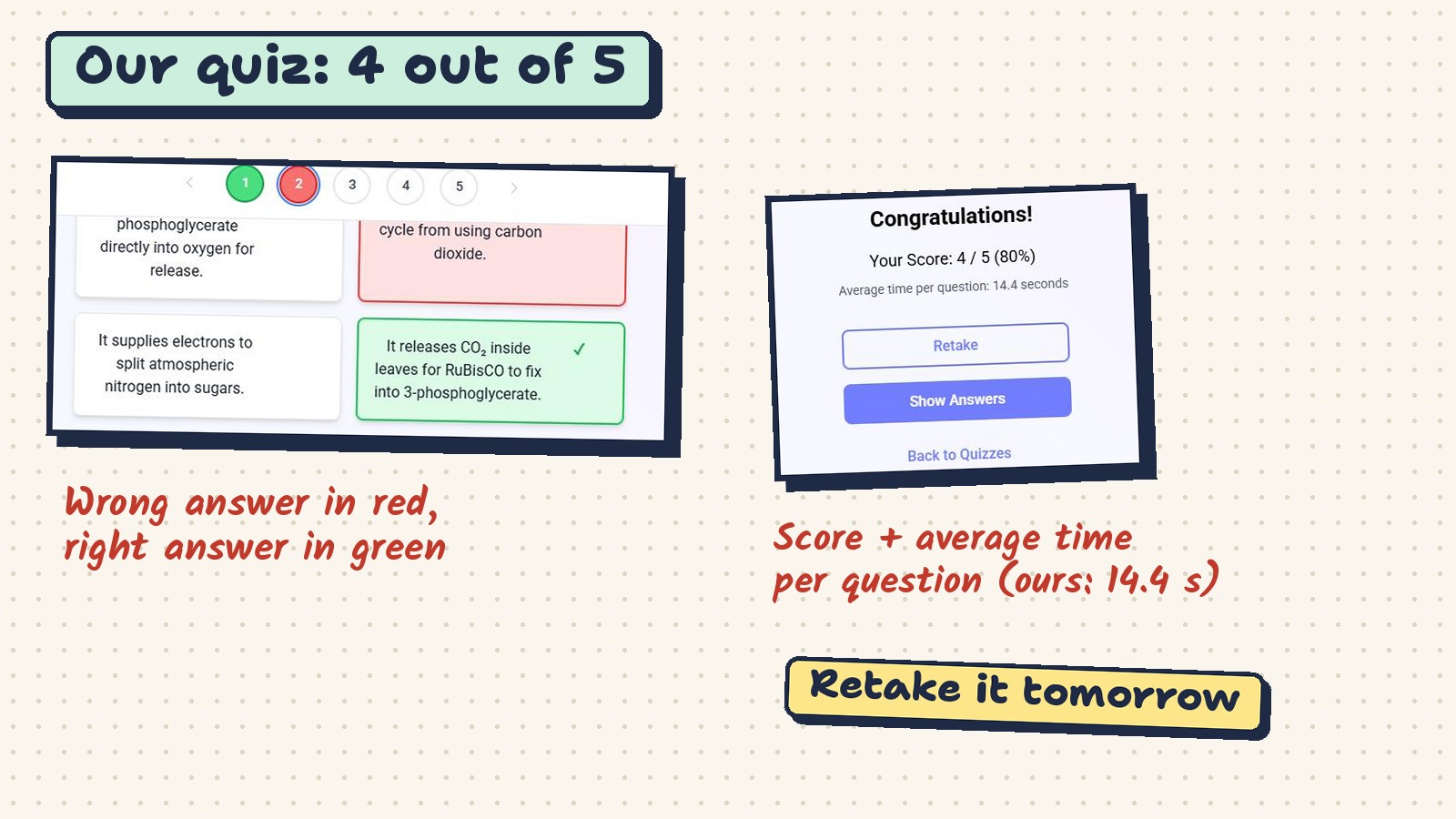
At the end you see your score and your average time per question, with buttons to Retake the quiz or Show Answers. Our second quiz, 5 questions in multiple choice and true/false, ended at 4 out of 5 (80%). A small “Learning Progress” ring at the top of the session also went up after the quiz (from 34 to 51).
Watch our quiz test in the video (from 2:09)

Step 6: ask the AI Tutor
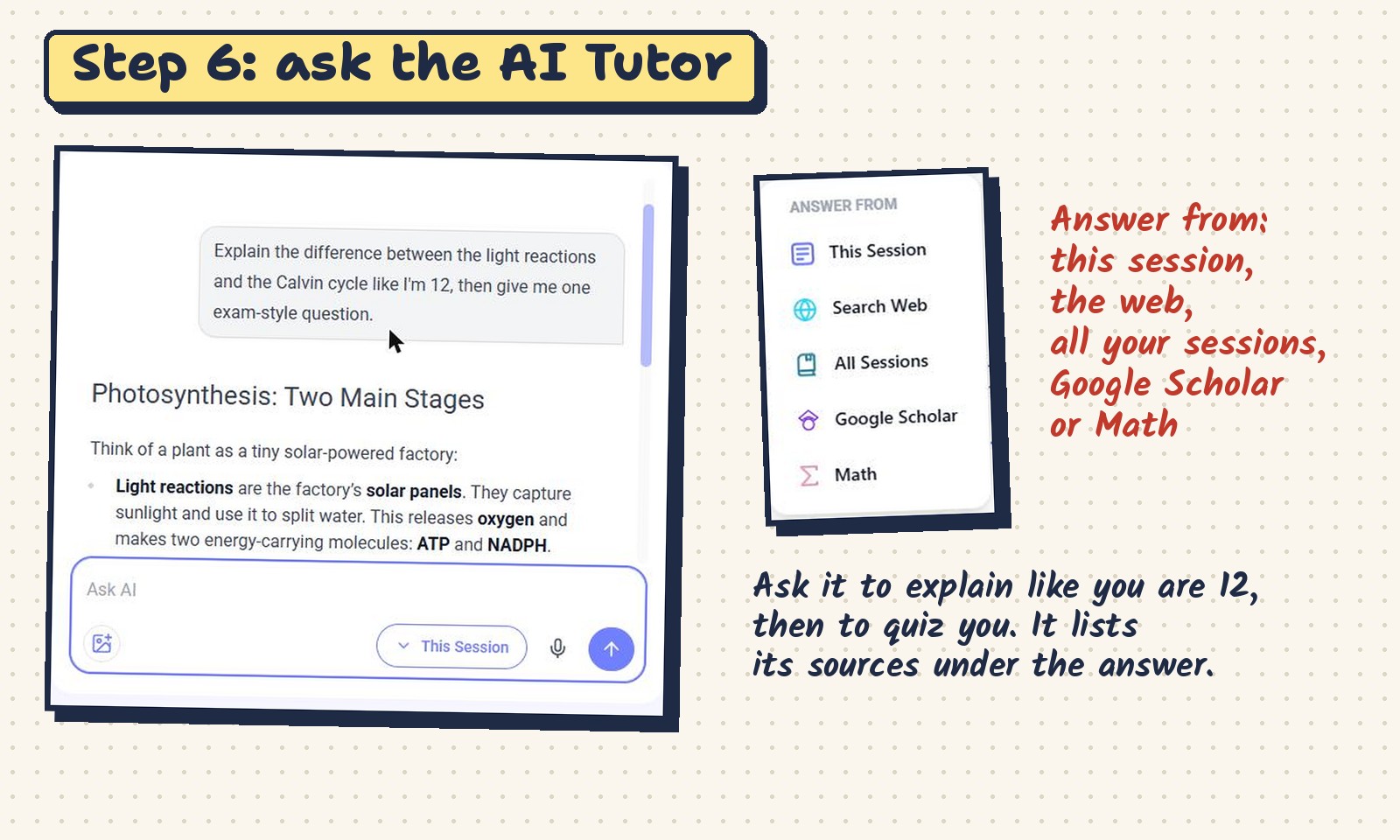
The AI Tutor sits on the right of every session. Type a question, or use the microphone or an image. We asked: “Explain the difference between the light reactions and the Calvin cycle like I’m 12, then give me one exam-style question.” It answered with a clear comparison (the light reactions as the “solar panels”, the Calvin cycle as the “builder”), wrote a real exam question, and listed 7 sources from the article under the answer.
The Answer from menu lets you choose where the answer comes from: This Session, Search Web, All Sessions, Google Scholar or Math. Keep “This Session” for exam prep, so the answers stick to your course.
Free or paid?
We did everything in this guide on a free account: summary, notes, read aloud, Explain More, 80 flashcards with export, several quizzes and the AI Tutor. The one feature that asked us to upgrade was Show Diagram (Premium).
Mindgrasp’s pricing page listed three paid plans at $9.99, $12.99 and $14.99 a month, each with a 4-day free trial, and its FAQ promised unlimited uploads and no daily usage limits; the higher plans also mention Canvas, Blackboard and Panopto integration. Inside the app, Premium was offered at $10.99 a month on a yearly plan. Prices change often, so check before you pay.
If you decide to upgrade, the code 9GAXXWH6 takes 20% off your first payment.
Your 20-minute practice run
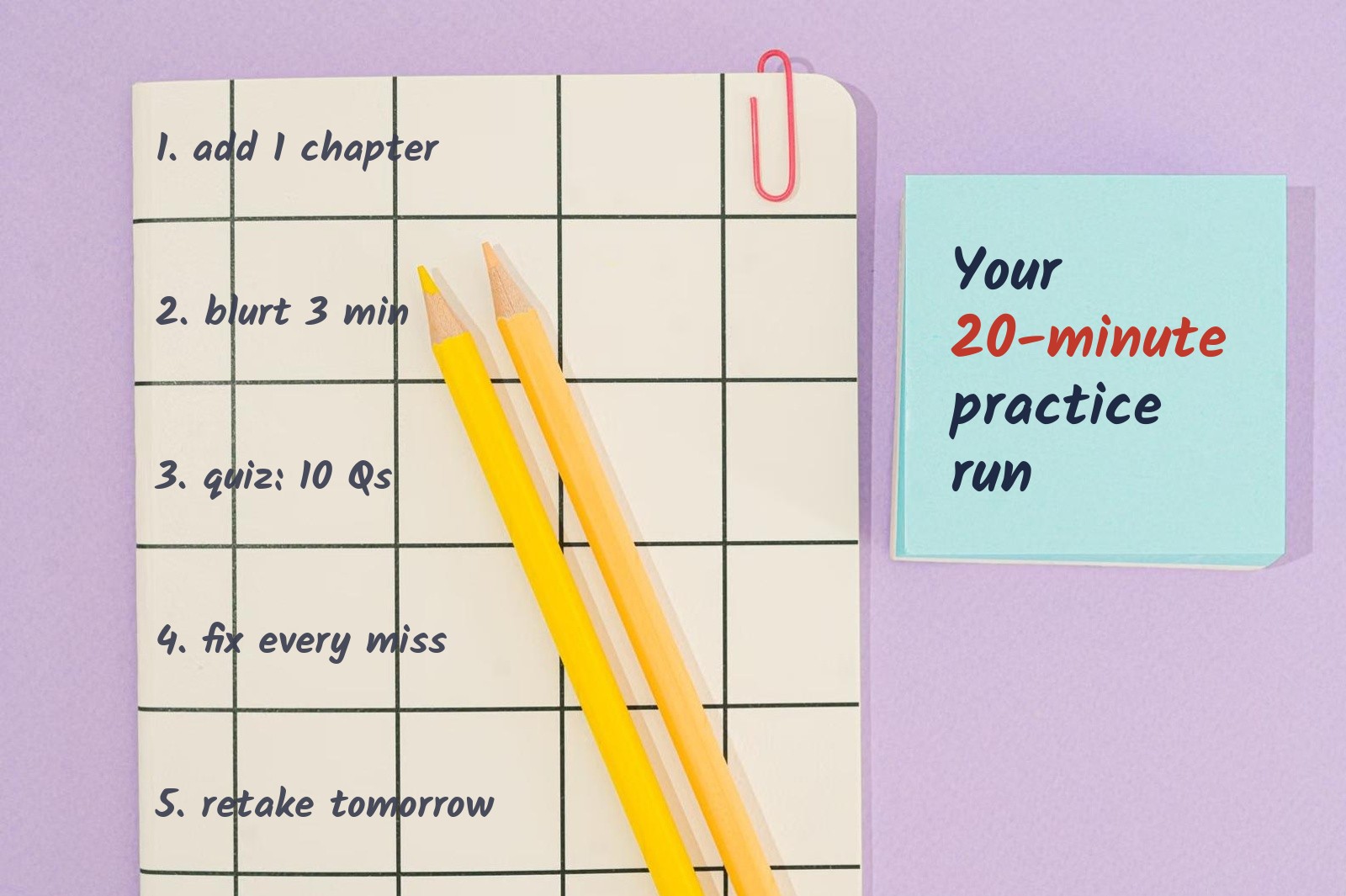
Reading about a tool is not the same as using it. Take one chapter you have to learn this week and follow these five steps. Tick each one as you go; the timer helps with step 2.
Practice run: one chapter, 20 minutes
Use it the right way
Mindgrasp AI works best as a study helper, not as a shortcut around studying. Two habits make the difference:
- Recall before you read. Quiz yourself and say flashcard answers out loud before you look. A famous 2006 study found that students who practiced recalling a text remembered 61% of it a week later, against 40% for students who only reread it.
- Check the facts that matter. AI notes and answers can drop or mix up details. For anything your grade depends on, check it against your textbook or your teacher’s slides.
Using AI to learn is not the same as using AI to do the work for you. If you are not sure where your school draws the line, our guide is using AI cheating? has a 60-second checker. And if your exam is close, plan your days with our study schedule for exams.
Questions
How do I use Mindgrasp AI?
Start a New Study Session, add a file, a link, text or a recording, and wait for it to process (about 30 seconds for our article). Then use the five tabs: AI Summary, AI Notes, AI Flashcards, AI Quizzes and the AI Tutor on the right.
Is Mindgrasp AI free?
We used a free account for everything in this guide, except Show Diagram, which is Premium. The pricing page listed paid plans from $9.99 a month with a 4-day free trial when we checked in November 2026.
What can I upload to Mindgrasp AI?
PDF and Word files, PowerPoint slides, MP3 and MP4 files, links to online articles, YouTube and Vimeo videos, pasted text, and live audio recordings.
Can Mindgrasp AI make a quiz from a YouTube video?
Mindgrasp lists YouTube links as a supported source. Paste the video link in a new session, then open AI Quizzes and click Create Quiz. We tested it with a web article; the quiz options were 5 to 35 questions in multiple choice, fill in the blank and true/false.
Is using Mindgrasp AI cheating?
Using it to study (summaries, flashcards, practice quizzes, explanations) is studying. Handing in AI-written work as your own is a different thing, and most schools forbid it. Follow your school’s AI policy.
Sources
- Our test: Mindgrasp AI, free account, November 9, 2026, with the Wikipedia article Photosynthesis (CC BY-SA).
- Mindgrasp AI pricing page, checked November 9, 2026.
- Roediger and Karpicke, “Test-Enhanced Learning”, Psychological Science, 2006: doi.org/10.1111/j.1467-9280.2006.01693.x.
- Desk photos: Pexels (free license), edited by Worksheet365. Screens shown are real Mindgrasp AI screenshots from our test.
Screenshots were taken during our test on November 9, 2026; features, plans and prices may change. Mindgrasp AI is a trademark of its owner; Worksheet365 is not affiliated with it beyond the partner program named above. Our editorial approach · Affiliate disclosure